
Background reading:背景阅读:
For many designers, implementing variable fonts on a website might mean treating the project as a blank canvas, and using a brand new typeface to experiment with the possibilities variable fonts offer. However, swapping out our static fonts for variable ones can be a useful way of dipping your toes into this new world. Plus, moving from a typeface’s static fonts to its variable cousins offers some advantages: With the overall typographic system tried and tested, we’re not actually changing that much; it’s more of a case of finessing our typography—and saving some data while we’re at it.
对于许多设计师来说,在网站上实现可变字体可能意味着将项目视为空白画布,并使用全新的字体来尝试可变字体提供的可能性。然而,将静态字体替换为可变字体可能是让您涉足这个新世界的有用方法。另外,从字体的静态字体转向其可变字体具有一些优势:通过尝试和测试整个印刷系统,我们实际上并没有改变那么多;这更多的是巧妙地设计我们的排版,并在我们使用它时保存一些数据。
Manipulating the first axisLink copied!
操纵第一轴
Let’s test this out and make the move from the static version of Anybody, by Tyler Finck, to its newer, variable version. This font contains three variable axes: Weight (wght), Italic (ital), and Width (wdth). But before we get into the axes themselves, we first need to actually load the variable fonts. Assuming we’re using the Google Fonts API (of course, we could always download the font files and self-host them), we’ll update the line in our HTML’s head—which is currently using the Regular (400), Regular Italic, Bold (700), and Bold Italic styles—from this:
让我们对此进行测试,并从 Tyler Finck 开发的 Anybody 静态版本迁移到更新的可变版本。该字体包含三个可变轴:粗细 ( wght )、斜体 ( ital ) 和宽度 ( wdth )。但在我们进入轴本身之前,我们首先需要实际加载可变字体。假设我们使用 Google Fonts API(当然,我们始终可以下载字体文件并自行托管它们),我们将更新 HTML 的 head 中的行 - 目前使用常规 (400),常规斜体、粗体 (700) 和粗斜体样式 - 来自此:
<link href="https://fonts.googleapis.com/css2?family=Anybody:ital,wght@0,400;0,700;1,400;1,700&display=swap" rel="stylesheet">
To this:对此:
<link href="https://fonts.googleapis.com/css2?family=Anybody:ital,wdth,wght@0,50..150,100..900;1,50..150,100..900&display=swap" rel="stylesheet">
All we’re changing here is moving from static instances to a range of values, with each .. surrounded by the minimum and maximum values of the axis. In terms of weight, this range then allows us to use any value between 100 and 900 for both our upright and italic text. (We’re also adding another axis, wdth, which has a range of 50–150, but more on that in a second.)
我们在这里所做的所有更改都是从静态实例移动到一系列值,每个 .. 都被轴的最小值和最大值包围。就粗细而言,这个范围允许我们对直立和斜体文本使用 100 到 900 之间的任何值。 (我们还添加了另一个轴 wdth ,其范围为 50-150,稍后会详细介绍。)
In the static world, we had font-weight declarations that look like this:
在静态世界中,我们的 font-weight 声明如下所示:
body {
  font-weight: 400;
}

strong {
  font-weight: 700;
}
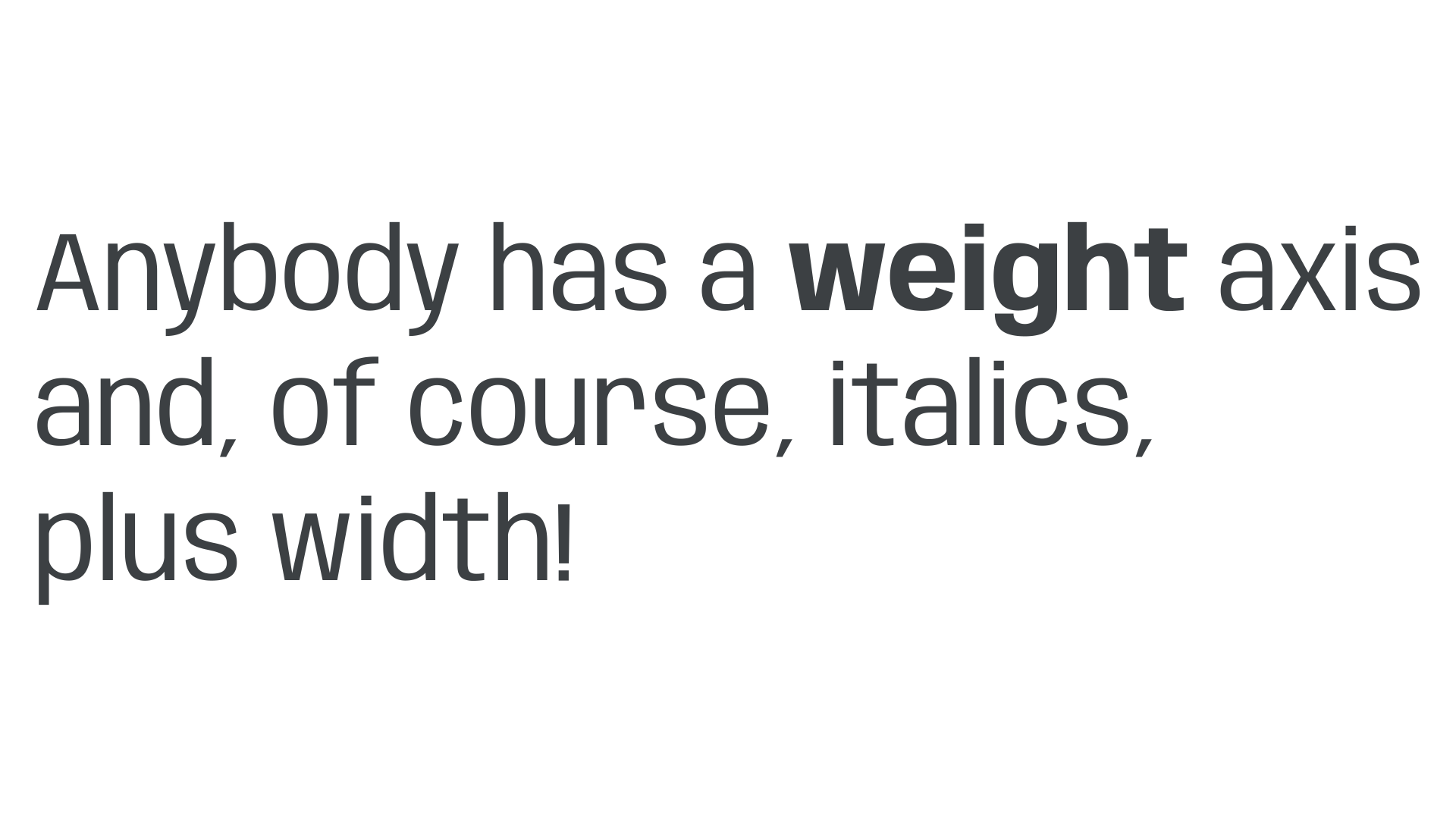
Well, good news, because they still look like that! Although specialized variable axes require us to use font-variation-settings to control them, the weight axis has been mapped to the font-weight property we all know and love.
好吧,好消息,因为它们看起来仍然像那样!虽然专门的变量轴需要我们使用 font-variation-settings 来控制它们,但权重轴已映射到我们都知道和喜爱的 font-weight 属性。
So now let’s get a bit more inventive and harness the power of variable fonts to tweak those weights. We’ll make our body text a lot lighter (147 rather than 400) and our strong text ever-so-slightly lighter than a usual bold (663 rather than 700):
现在,让我们发挥更多创意,利用可变字体的力量来调整这些粗细。我们将使我们的 body 文本变得更轻(147而不是400),我们的 strong 文本比通常的粗体稍微更轻(663而不是700):
body {
  font-weight: 147;
}

strong {
  font-weight: 663;
}

Note: It’s not just the strong element that needs to be updated, but also any HTML element where the browser stylesheet is applying a bold weight. Typically, unless they’ve been overridden already, this includes b, h1 to h6, and several other elements, including table headings (th) and dictionary definitions (dd). These will all need the setting of 663, too (or their own custom weight if you’d prefer).
注意:不仅需要更新 strong 元素,还需要更新浏览器样式表应用粗体粗细的任何 HTML 元素。通常,除非它们已经被覆盖,否则这包括 b 、 h1 到 h6 以及其他几个元素,包括表标题 ( th ) 和字典定义 ( dd )。这些也都需要设置为 663(如果您愿意,也可以设置它们自己的自定义权重)。
The italic axisLink copied! 斜轴
Next, let’s style our italics. Because Anybody’s italic variations are in a separate font file, we can keep using font-style: italic, just as we would with a static font:
接下来,让我们设置斜体的样式。因为 Anybody 的斜体变体位于单独的字体文件中,所以我们可以继续使用 font-style: italic ,就像使用静态字体一样:
em {
  font-style: italic;
}
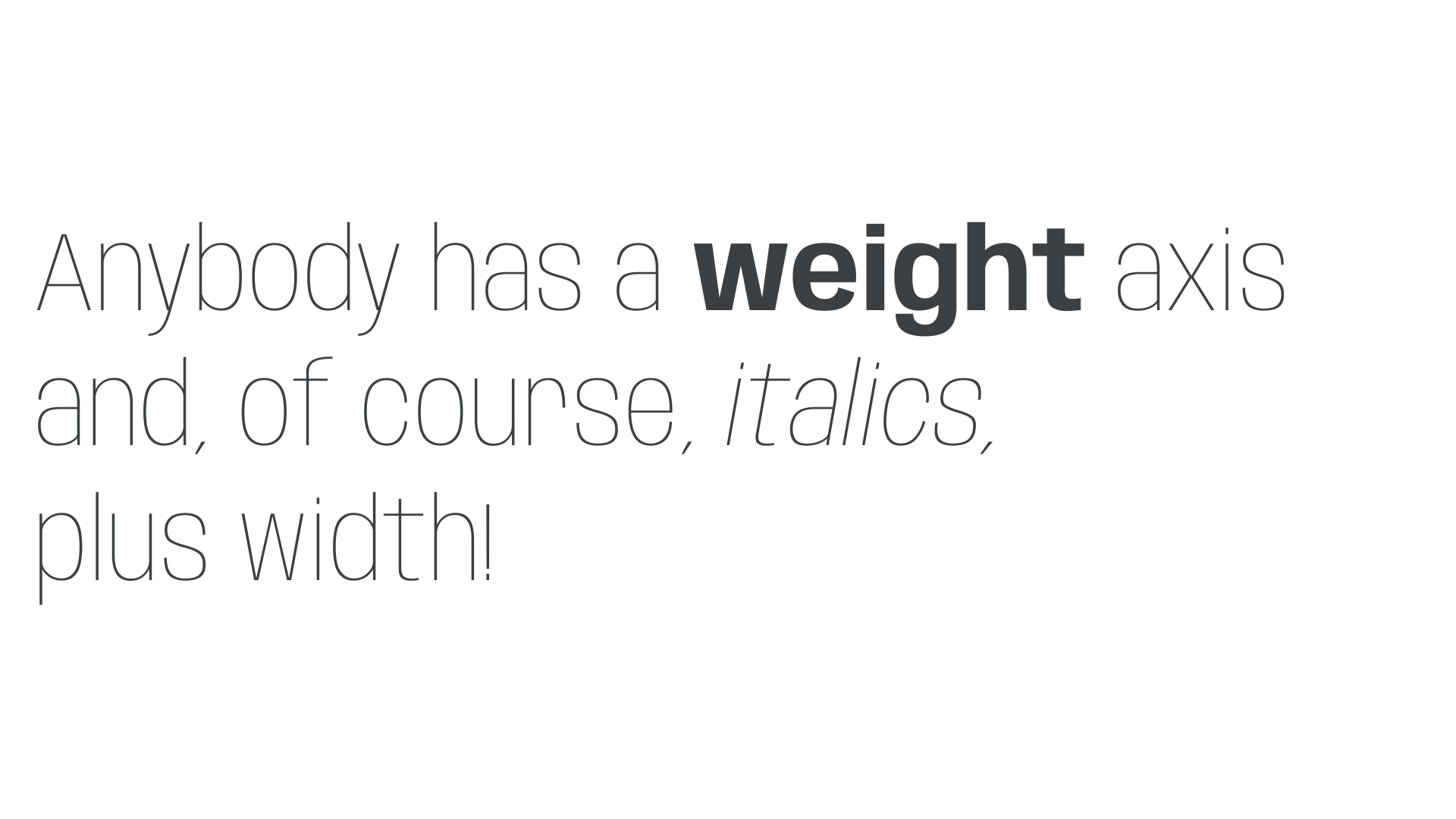
Switching italics on and off in this case is very easy because it essentially just swaps between the two files. When uprights and italics (or obliques) are bundled within the same variable font file, we need to employ font-variation-settings and use the slnt axis—see below.
在这种情况下打开和关闭斜体非常容易,因为它本质上只是在两个文件之间交换。当直体和斜体(或斜体)捆绑在同一个可变字体文件中时,我们需要使用 font-variation-settings 并使用 slnt 轴 - 见下文。
Manipulating an additional axisLink copied!
操纵附加轴
It’s time to move onto our third axis: Width (wdth). In this font in particular, width wasn’t exposed until the release of this variable version, so it’s a great excuse to make use of variable fonts’ powers of further refinement.
是时候转到我们的第三个轴了:宽度 ( wdth )。特别是在这种字体中,宽度直到这个可变版本发布才公开,因此这是利用可变字体进一步细化的能力的一个很好的借口。
Once again, the Width axis has been mapped to familiar CSS: we can manipulate it using the font-stretch property. The only difference is that, unlike weight, we need to declare it as a percentage. Let’s give our span element the maximum width value of 150%:
宽度轴再次映射到熟悉的 CSS:我们可以使用 font-stretch 属性来操作它。唯一的区别是,与重量不同,我们需要将其声明为百分比。让我们为 span 元素指定最大宽度值 150%:
span {
  font-stretch: 150%;
}
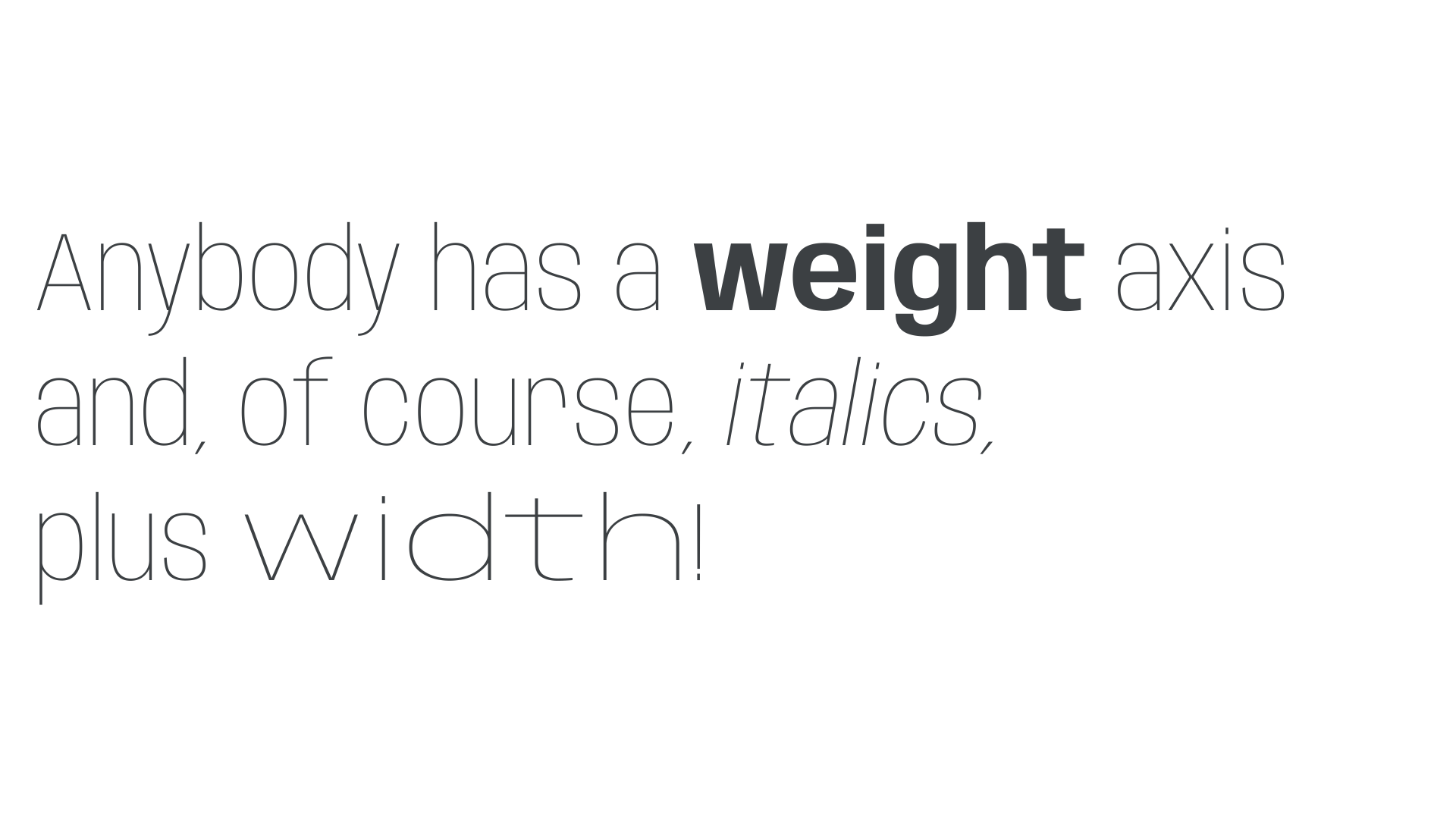
And while we’re at it, why not make everything but the span a little more condensed with a font-stretch value of 72%?
当我们这样做的时候,为什么不把除了 span 之外的所有内容都变得更简洁一点,字体拉伸值为 72%?
body {
  font-stretch: 72%;
}

With some very subtle tweaks to some already familiar code, we’ve switched from the static to variable version of Anybody, and used the power of variable fonts to give our text more stylistic variation that wouldn’t have been possible before, and all without loading multiple font files. Let’s review our final CSS:
通过对一些已经熟悉的代码进行一些非常微妙的调整,我们从 Anybody 的静态版本切换到可变版本,并使用可变字体的强大功能为我们的文本提供更多以前不可能的风格变化,而这一切都没有加载多个字体文件。让我们回顾一下最终的 CSS:
body {
  font-family: "Anybody", sans-serif;
  font-stretch: 72%;
  font-weight: 147;
}

strong {
  font-weight: 663;
}

em {
  font-style: italic;
}

span {
  font-stretch: 150%;
}
Going furtherLink copied! 更进一步
In this example, we’ve stuck to axes that have been mapped to existing CSS properties. If you’re using a font that has a different axis, such as the aforementioned Slant (slnt), you’ll need to use font-variation-settings to control that parameter. For example:
在此示例中,我们坚持使用已映射到现有 CSS 属性的轴。如果您使用具有不同轴的字体,例如前面提到的倾斜( slnt ),则需要使用 font-variation-settings 来控制该参数。例如:
body {
	font-variation-settings: "slnt" 0;
}

em {
	font-variation-settings: "slnt" 1;
}
Note that font-variation-settings is also required for any custom axes. For more information, please see “Styling type on the web with variable fonts.”
请注意,任何自定义轴也需要 font-variation-settings 。有关更多信息,请参阅“使用可变字体在网络上设置样式”。
* Content is owned by Google. Thank you to
* 内容归 Google 所有。感谢 Laurence Penney 审阅此内容。