
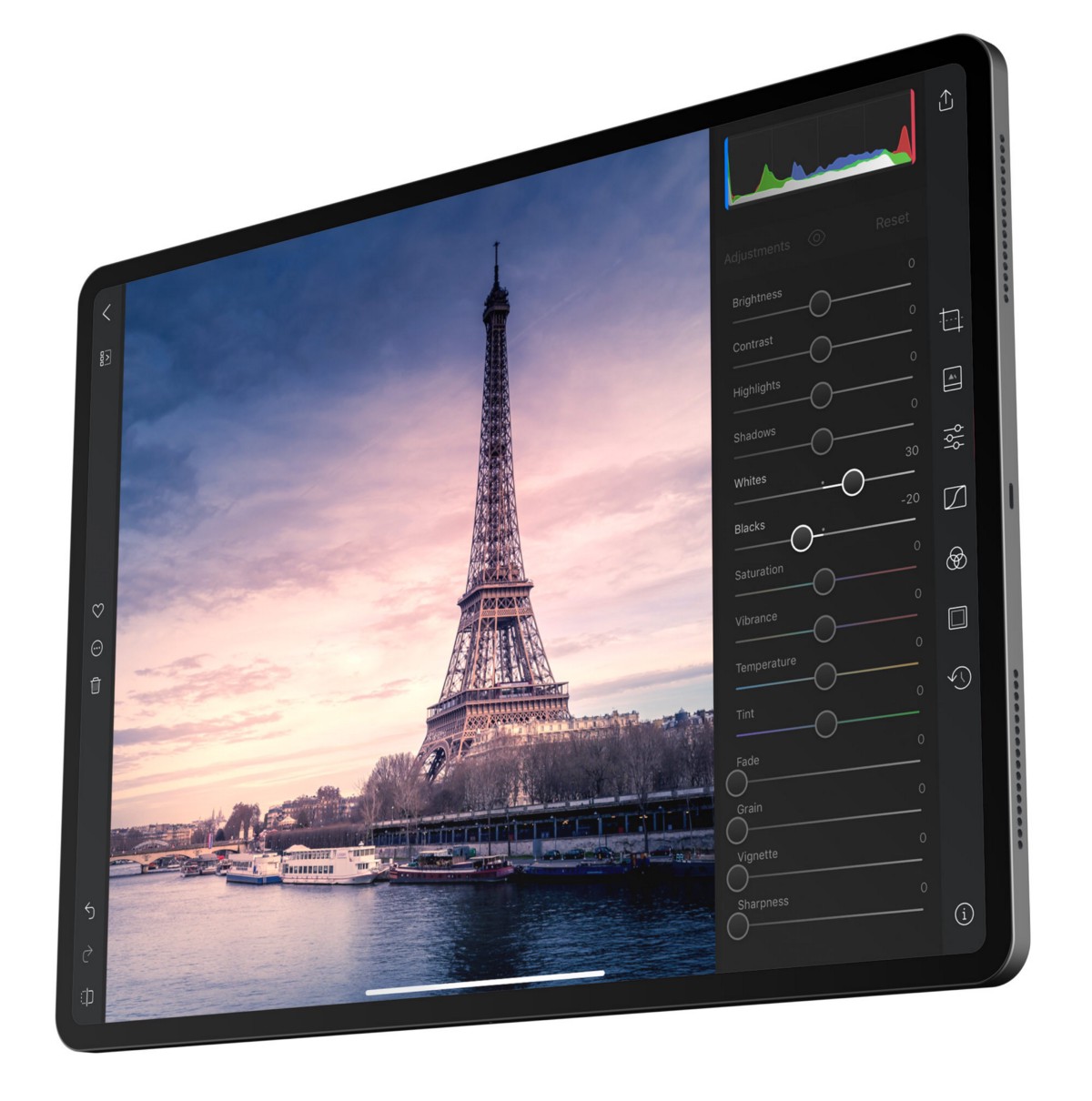
The Darkroom Histogram is finally here in all its colorful, curvy glory! We obsessed over these little curves to create a histogram that was easy to use, and that goes beyond just a graph of numbers.
暗房直方图终于在这里出现了,它色彩斑斓,曲线优美!我们迷恋这些小曲线,创造了一个易于使用的直方图!我们痴迷于这些小曲线,以创建一个易于使用的直方图,它不仅仅是一个数字的图表。
Our primary innovation here are the rich, verbose clipping indicators. Instead of abstract shapes that have no meaning, we show you contextual words that guide you through the histogram-driven editing process. We spent a lot of time making sure you see the right thing, at the right time, and in the right context.
我们在这里的主要创新是丰富的、言简意赅的剪裁指标。我们向你展示的不是没有意义的抽象形状,而是引导你完成直方图驱动的编辑过程的上下文文字。我们花了很多时间来确保你在正确的时间和背景下看到正确的东西。
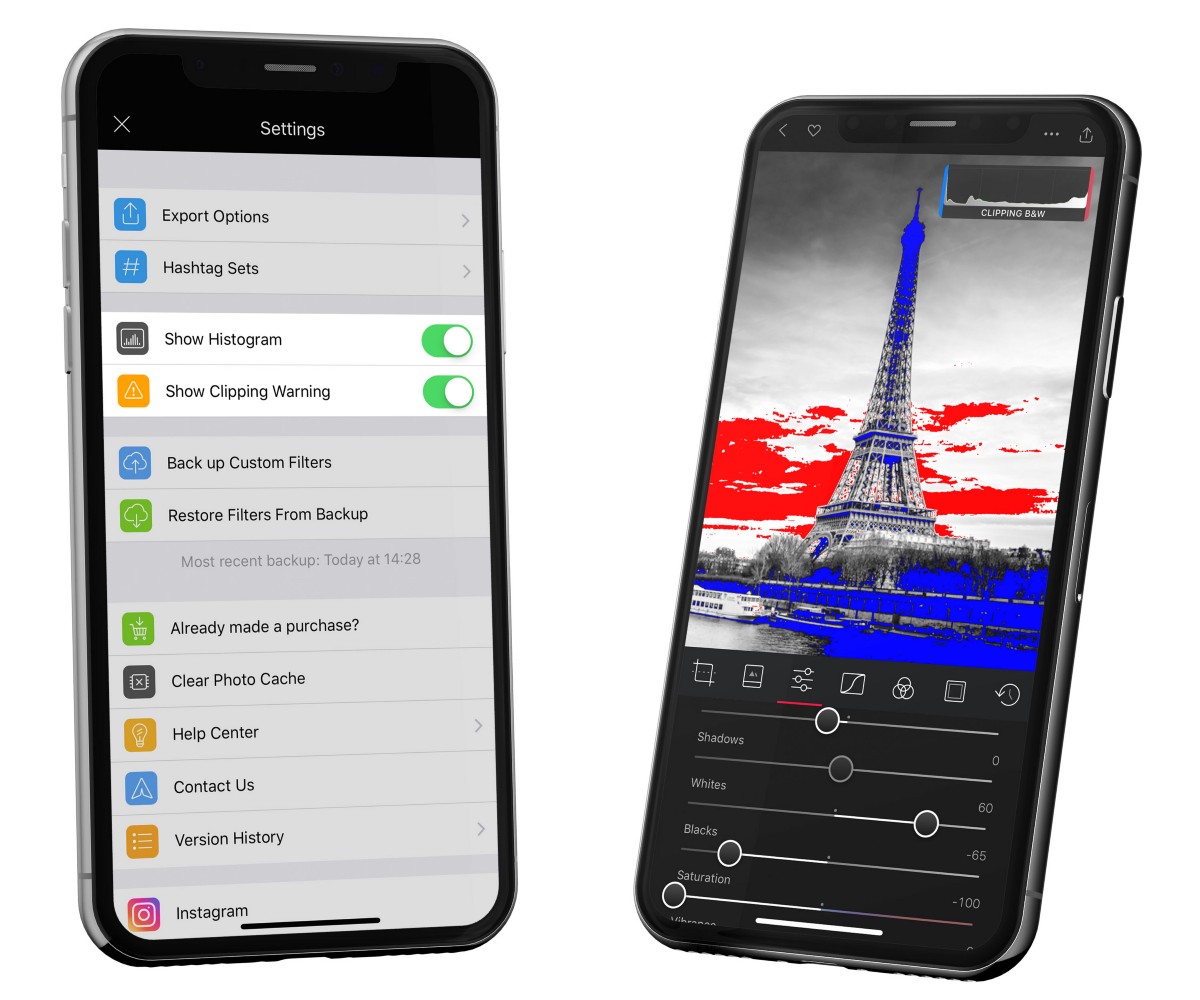
To access the photo histogram either tap the (…) action menu when viewing a photo and selecting Show Histogram, or head to Settings in the app. To hide it quickly, you can just swipe it offscreen to the right.
要访问照片直方图,可以在查看照片时点击(...)操作菜单并选择显示直方图,或者前往应用程序中的设置。要快速隐藏它,你可以把它从屏幕上移到右边。
Ok great, but like, why?好的,很好,但是,为什么?
Histograms help you more easily spot and fix problems with your photos objectively, in a way that eye-sight alone isn’t suited for. More specifically, histograms help you fix exposure and color problems in your image. Let’s talk about what a histogram shows you, so we can figure out how it helps you do those things.
直方图可以帮助你更容易地发现并客观地修复照片中的问题,这是单凭肉眼无法做到的。更具体地说,直方图帮助你解决图像中的曝光和色彩问题。让我们来谈谈直方图显示了什么,这样我们就可以弄清楚它是如何帮助你做这些事情的。
A histogram is a diagram of how the pixels in your image are distributed. It goes from zero to one, left to right. During an editing session, we analyze the image and calculate how much of the image is 0% white, 1% white, 2% white, all the way to pure white. We do this for the three color channels as well: Red, Green, and Blue. We then plot those points to generate the final graph you see above your photo.
直方图是图像中的像素如何分布的图示。它从零到一,从左到右。在编辑过程中,我们分析图像并计算出图像中有多少是0%的白色、1%的白色、2%的白色,一直到纯白色。我们对三个颜色通道也是这样做的:红色、绿色和蓝色。然后我们绘制这些点,生成你在照片上方看到的最终图表。
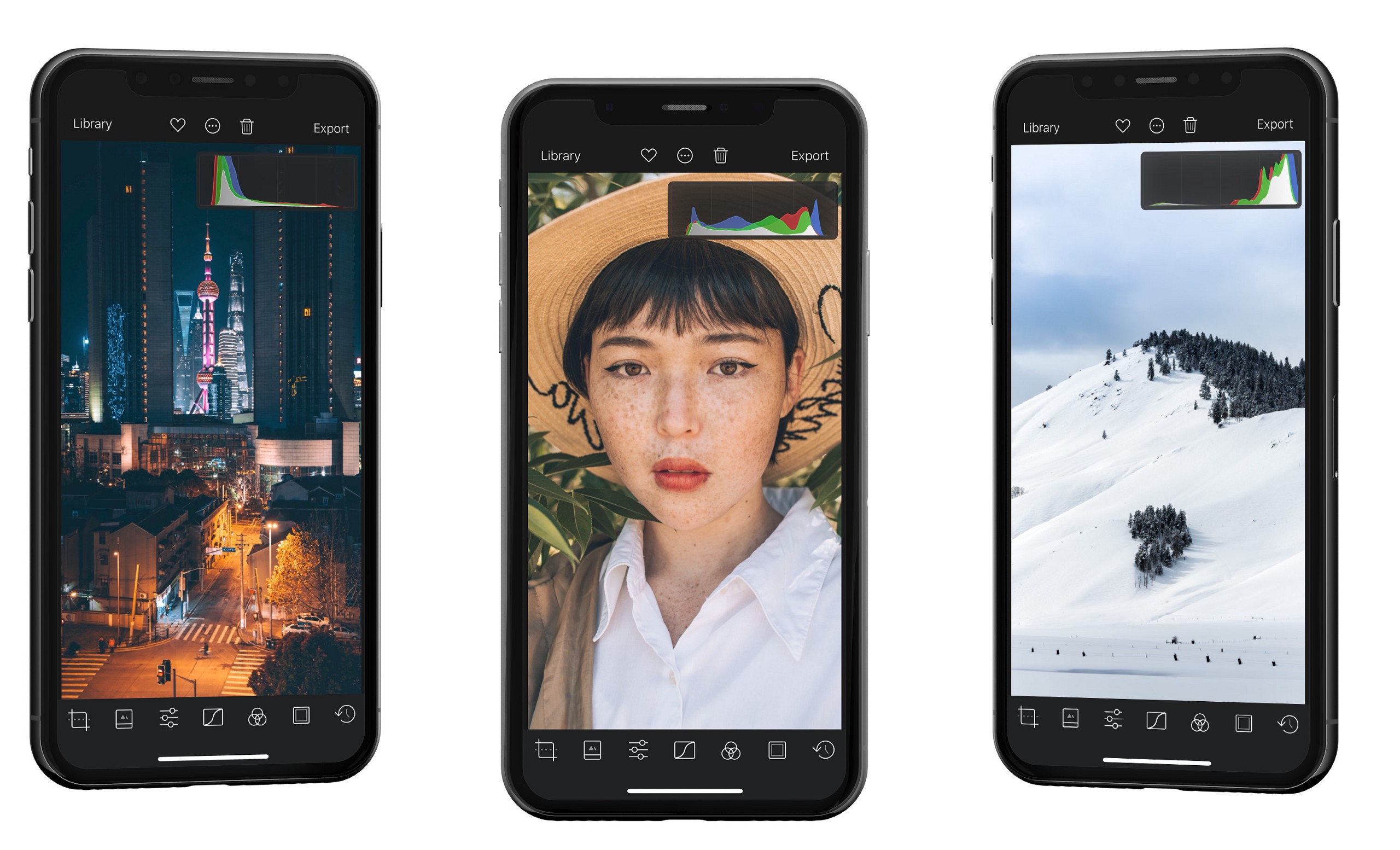
The three photos below shows different histogram shapes for different exposures. A dark photo will have a histogram that’s heavy on the left side. A bright photo will be heavy on the right side. And most of your photos will have a center weighted histogram like the one in the middle below.
下面三张照片显示了不同曝光下的不同直方图形状。一张黑暗的照片的直方图会在左边很重。一张明亮的照片,其直方图就会在右边偏重。而你的大多数照片都会有一个像下面中间这样的中心加权直方图。
Perfect Exposure, Every Time完美的曝光,每一次
Your iPhone will generally try to expose photos such that they use the full tonal range. However, there are many situations in which the camera will struggle. For example, if the sun is casting a glare on your photo, or you capture an image through a window, your photo may appear flat. You could eye-ball the fix, but due to screen brightness, features like True Tone, and ambient light, it can be very hard to know conclusively when you’re hit pure black/pure white. This is where a histogram shines. If your photo does not have any pixels in the pure-white bucket, the graph will be zero.
你的iPhone通常会尝试对照片进行曝光,使其使用全色调范围。然而,在许多情况下,相机会有困难。例如,如果太阳在你的照片上投下强光,或者你通过窗户捕捉图像,你的照片可能看起来很平淡。你可以用眼睛去看,但由于屏幕亮度、True Tone等功能和环境光的影响,你很难确切地知道你什么时候是纯黑/纯白。这就是直方图发挥作用的地方。如果你的照片在纯白桶中没有任何像素,该图将为零。
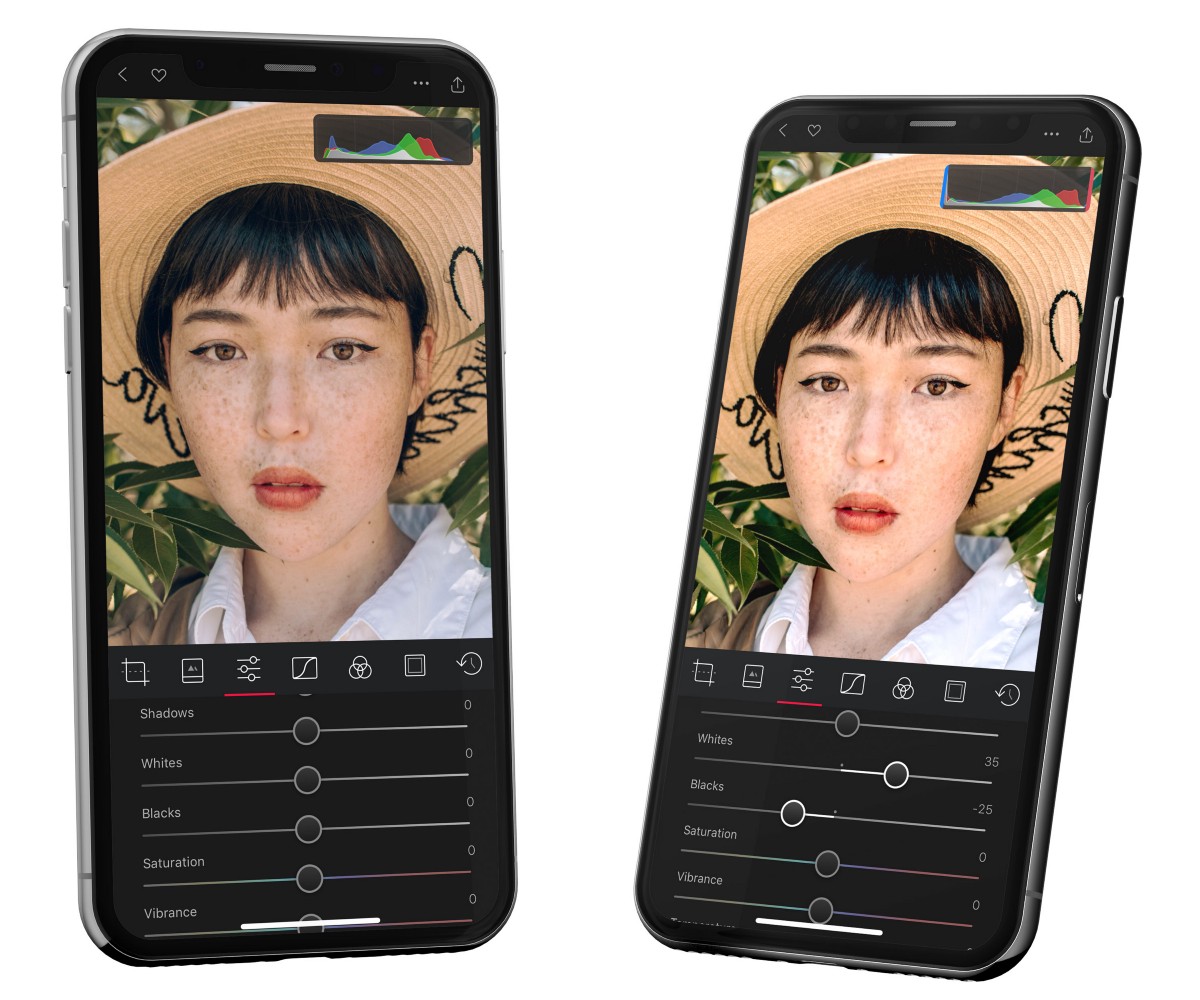
Here’s an example. Notice how the white portion of the histogram on the left doesn’t extend all the way to the edges. By adjusting the white and black sliders, we can stretch the histogram so that it takes advantage of the full tonal range, and you get a much richer image as a result. Many professional photographers do this as their first step in the editing process.
这里有一个例子。注意到左边的直方图的白色部分并没有一直延伸到边缘。通过调整白色和黑色滑块,我们可以拉伸直方图,使其利用整个色调范围,结果你会得到一个更丰富的图像。许多专业摄影师在编辑过程中的第一步就是这样做。
Color颜色
The Histogram also contains color information.This helps you spot color casts and white balance problems in your photo. Just like with exposure, your iPhone will try its best to capture the photo with the correct white balance settings, but it can’t always do that reliably.
直方图也包含颜色信息。这有助于你发现照片中的色差和白平衡问题。就像曝光一样,你的iPhone会尽力以正确的白平衡设置来拍摄照片,但它不可能总是可靠地做到这一点。
Fixing color casts requires a bit more finesse. Here’s the thing to remember: When the red, green, and blue channels overlap in a region, that region no longer contains any color (When the three channels are equal, you get gray). However, if you want a certain region to be gray, and it is not, then the histogram can tell you what to do.
修复色差需要更多的技巧。以下是需要记住的事情:当红、绿、蓝三个通道在一个区域重叠时,这个区域就不再包含任何颜色(当三个通道相等时,你就得到了灰色)。然而,如果你希望某个区域是灰色的,而它不是,那么直方图可以告诉你该怎么做。
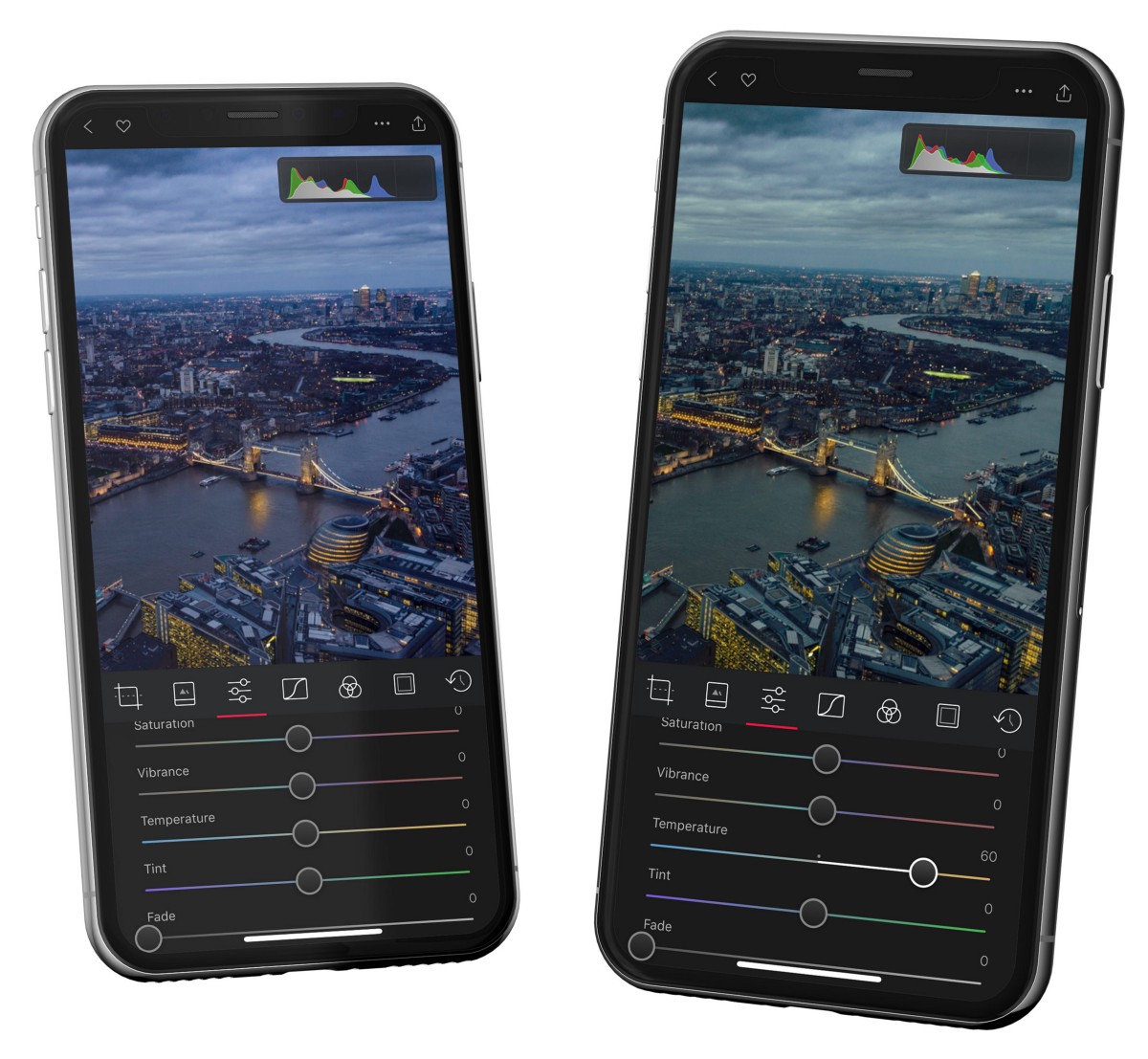
In the example below, the whole image has a green/blue tint to it because of the tinted windows it was shot through, and the time of day. This is confirmed by the histogram: Notice how much more blue and green there is in the highlights. By adjusting the tint, we can align the blue and green channels, and by adjusting the temperature and or curves, we can align the green and blue channel with them.
在下面的例子中,整个图像有一个绿色/蓝色的色调,因为它是通过有色的窗户拍摄的,而且是在一天的时间。这在直方图中得到了证实:注意高光部分的蓝色和绿色有多大。通过调整色调,我们可以将蓝色和绿色通道对齐,而通过调整温度和曲线,我们可以将绿色和蓝色通道与之对齐。
Clipping剪辑
Clipping refers to data that is pushed out of range. Color information generally lives along a spectrum from 0 to 1. However, photo editing allows you to manipulate your data. If you make an image too bright, or too dark, you might push white or black too far, and all that data can be lost, or clipped.
剪切指的是被推出范围之外的数据。颜色信息通常是沿着从0到1的光谱存在的。然而,照片编辑允许你操纵你的数据。如果你使图像太亮或太暗,你可能会把白色或黑色推得太远,所有这些数据可能会丢失,或被剪切。
We generally do our best to guard you from clipping information from your photo. But with tools like the Blacks and Whites, Curves, or Vignette, it’s not that hard to clip. Without a histogram it’s rather difficult to see pure black and pure white and know with certainty that you have lost details while editing. A histogram makes it easier to spot. When you see a peak on either the left (black) or right (white) sides you are running a risk of clipping.
一般来说,我们会尽力保护你不从照片上剪掉信息。但是,使用像黑与白、曲线或光晕这样的工具,剪辑并不难。如果没有直方图,就很难看到纯黑和纯白,也很难确定地知道你在编辑时丢失了细节。直方图使它更容易被发现。当你在左边(黑色)或右边(白色)看到一个峰值时,你就有可能被剪掉。
When you have the histogram visible, we will explicitly indicate in the histogram when you are clipping blacks, whites, or color. We do so with indicators at either side of the histogram, and briefly with a short text message below. We also show you those clipped pixels highlighted by clearly marking them on top of your photo with pure white pixels in red, and pure black pixels in blue.
当你看到直方图时,我们会在直方图中明确指出你是在削除黑色、白色或颜色。我们在直方图的两边用指示器来做,并在下面用简短的文字信息来做。我们也会向你展示那些被剪掉的像素,在你的照片上面用红色的纯白色像素和蓝色的纯黑色像素清楚地标出它们。
Note: clipping warnings do not show unless you have the histogram shown. We have made it possible to turn off clipping warnings in settings.
注意:除非你有直方图显示,否则不会显示剪裁警告。我们已经可以在设置中关闭剪裁警告。
Blacks & Whites Tools — Free黑人和白人工具 - 免费
We are sure you have had shots that looked a tad flat and washed out, with a lack of true white or black. Most images look best when they utilize the full range dark to light which can be displayed on your screen or in a print. This is the tool that makes it possible for you to stretch your darks towards true black, and your lights towards true white. When considering adjusting your blacks and whites, ask yourself: is there any region in the image which should be completely black or white, and does the image histogram show this?
我们确信你曾拍过一些看起来有点平淡无奇的照片,缺乏真正的白色或黑色。大多数图像在利用从暗到亮的全部范围时看起来最好,这可以在你的屏幕上或印刷品中显示。这是一个工具,使你有可能将你的暗部延伸到真正的黑色,而将你的亮部延伸到真正的白色。当考虑调整你的黑色和白色时,问问自己:图像中是否有任何区域应该是完全的黑色或白色,图像直方图是否显示了这一点?
Tip: by stretching the range of your photo a lot you are increasing the likelihood of posterization happening. The posterization effect ranges from subtle to quite pronounced which looks like color bands or steps where you’d expect a smooth gradient. In your histogram you’ll spot posterization pretty easily as well in the shape of jagged edges instead of smooth curves. In your photo you will notice it the most in blue skies, and can counter act it a bit by adding Grain.
提示:通过大量拉伸你的照片的范围,你正在增加发生海报化的可能性。海报效应的范围从微妙到相当明显,看起来像色带或阶梯,而你期望的是一个平滑的梯度。在你的直方图中,你会很容易发现海报化现象,即锯齿状的边缘而不是平滑的曲线。在你的照片中,你会在蓝天中注意到它,并可以通过增加Grain来抵消它。
Curves曲线
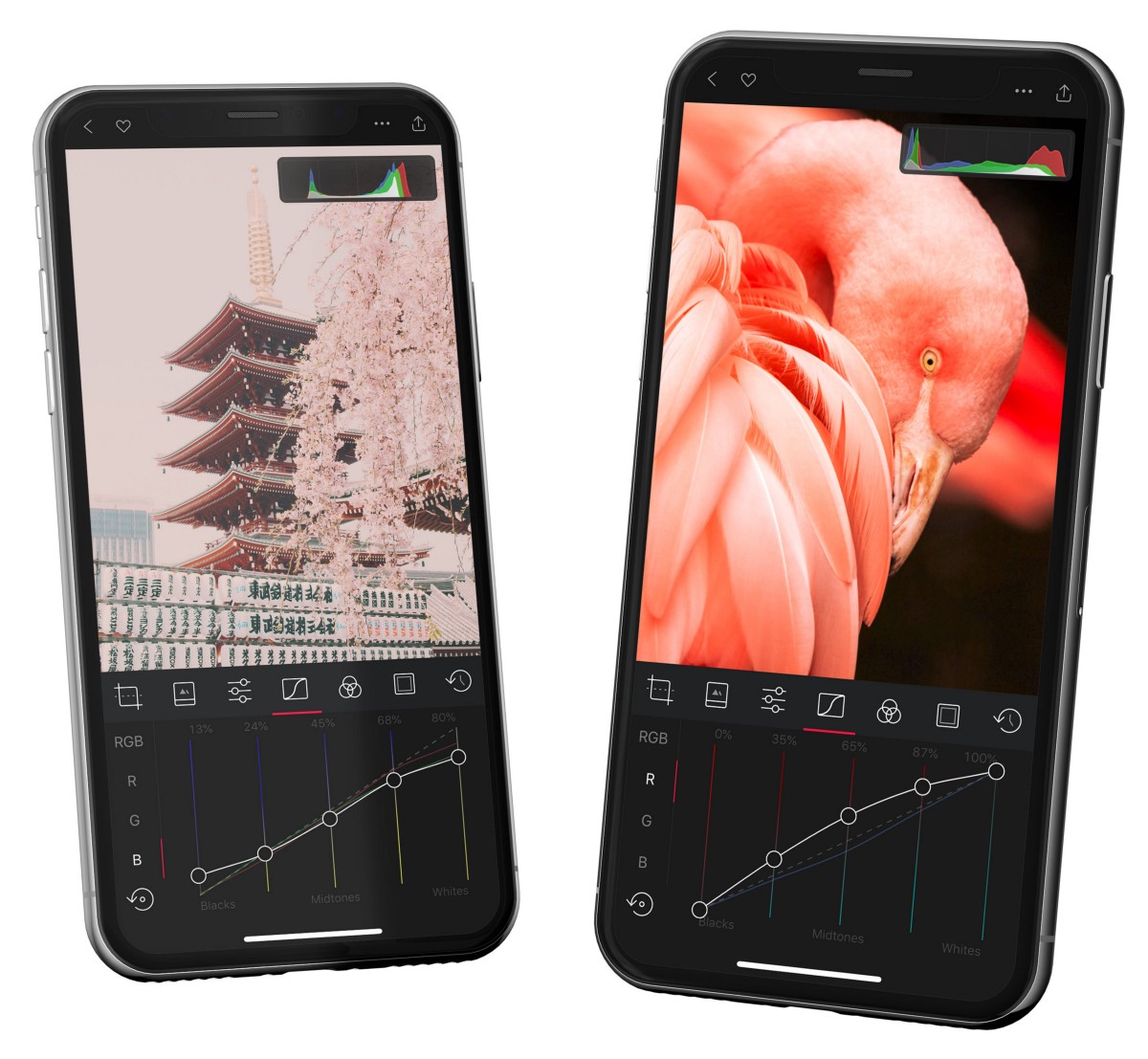
Any time we think we can improve on the usability of the curves tool we grab it with both hands. In this iteration we now show you the curves of all edited channels in each channel. This means less switching to see or match what edits you had made in any of your other channels. Which makes for a subtle but powerful workflow improvement.
任何时候,我们认为我们可以改进曲线工具的可用性,我们就会用双手抓住它。在这次迭代中,我们现在在每个通道中显示所有编辑过的通道的曲线。这意味着减少了切换,以查看或匹配你在任何其他通道中所作的编辑。这使得工作流程得到了微妙但强大的改善。
App-Wide Refinements应用程序范围内的细化
We’ve also taken a hard look across the app and added improvements throughout. For a full list of changes, please refer to our updates page.
我们还仔细检查了整个应用程序,并在整个过程中增加了改进。有关完整的变化清单,请参考我们的更新页面。
As a final note, a huge Thank You to our most recent addition to the team Igor, for building much of this release and keeping on iterating. It would not have happened without you!
最后,非常感谢我们最近加入团队的Igor,他为这个版本做了很多工作并不断地进行迭代。没有你,这一切都不会发生!
The Darkroom Team暗室团队